AI Document Enhancer & Upscaler

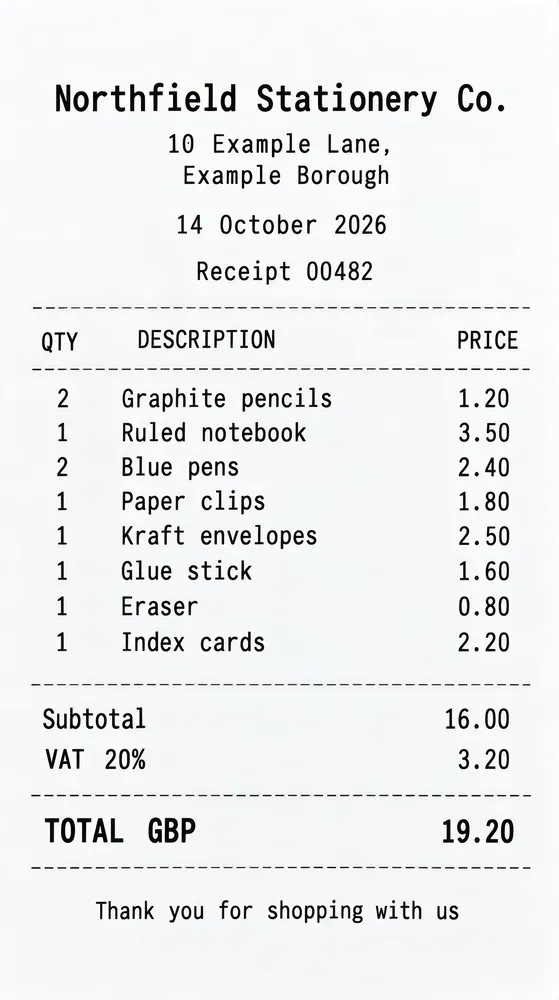
The same receipt after AI document enhancement, with sharp, readable text

Improve document quality in seconds. Upscale scanned documents, PDFs, photos of documents and certificates, and make small or blurry text sharp and readable – for reading, printing or OCR.

3 free documents a day · No sign-up needed

Normal or Generative: Choose the Right Mode

Every document is different, so the AI Document Enhancer has two modes.

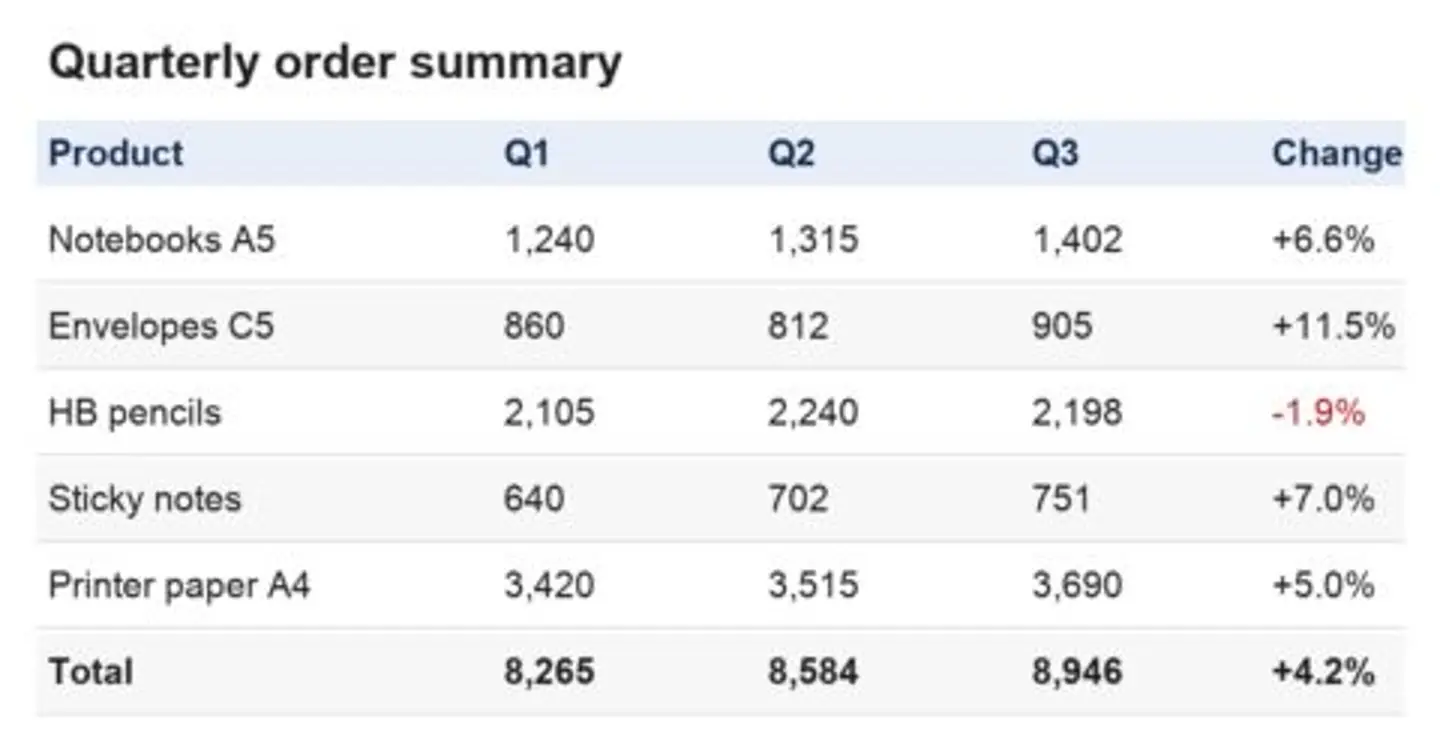
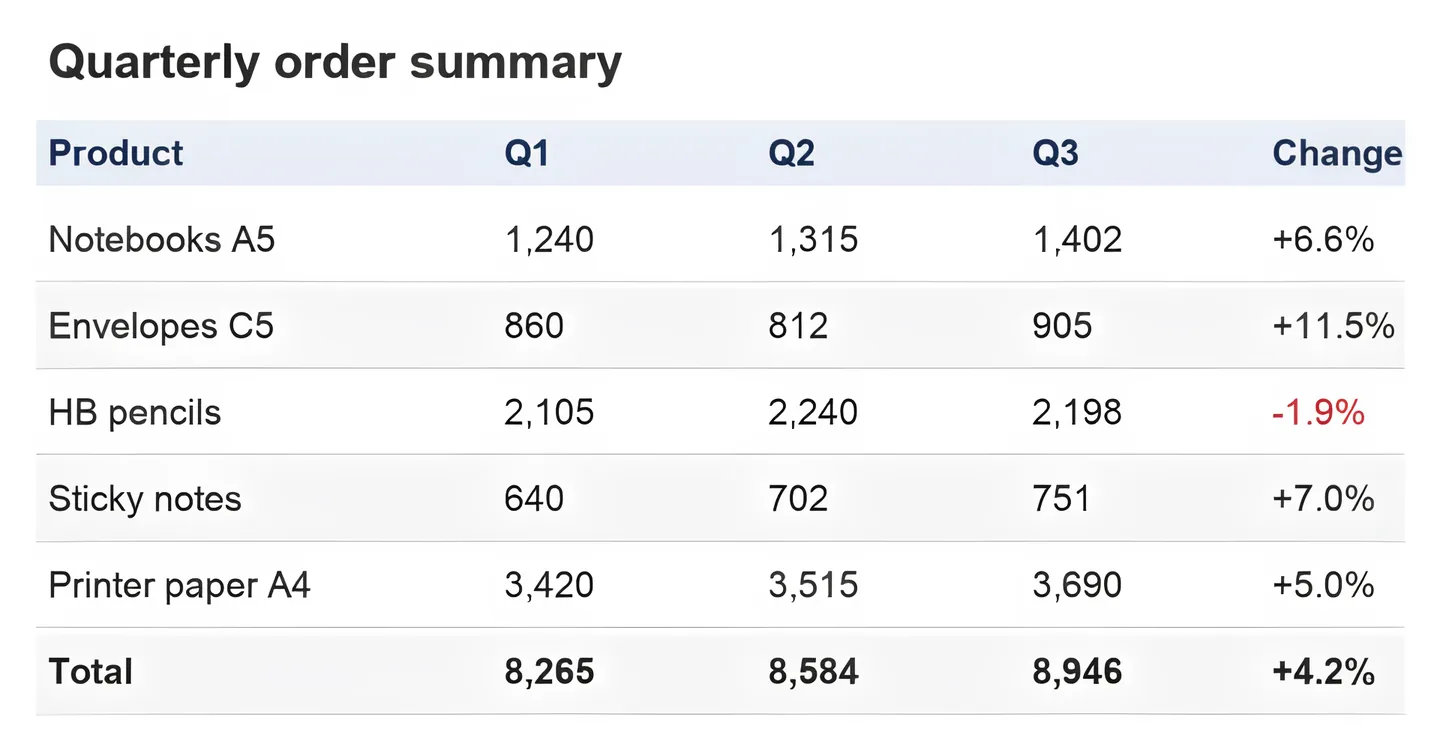
Low-resolution screenshot of a table with blurry numbers, before upscalingThe same table screenshot upscaled 4× in Normal mode, the numbers crispBeforeAfter · Normal

Normal – accurate upscaling for readable text

Normal mode upscales the document 4× without generative changes and is designed to preserve the original content. It focuses on the text: letter edges become sharp, contrast improves and small print becomes easy to read. Use it for contracts, invoices and forms, and before running OCR. For documents with critical information, always verify important details against the original.

What it does
Upscales the document 4× and sharpens the text
Fidelity
No generative changes, designed to preserve the original content
When to use
Readable documents: contracts, invoices, forms, OCR
Cost
Same credit cost
Access
Without an account, free account and PRO
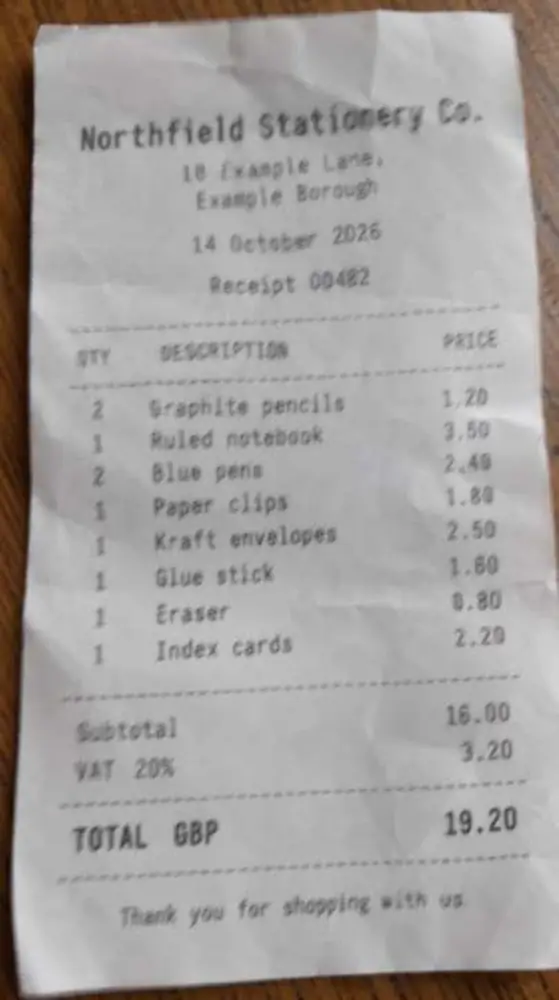
Blurry, faded shop receipt photographed with a phone, before AI document enhancementThe same receipt enhanced with AI in Generative mode, its text sharp and readableBeforeAfter · Generative

Generative – for documents that are hard to read

Generative mode is made for difficult documents: faded or barely visible text, photos taken at an angle, uneven light and yellowed paper. It can improve each of these – recover unclear letters, straighten the perspective and restore paper and ink colors – and picks the output resolution automatically. Because it is generative, every run may give a slightly different result, and it reconstructs details rather than only sharpening them. Always check important names and numbers against the original.

Generative results can differ from the original in small details: check names, numbers and amounts against the original.

What it does
Recovers unclear letters, straightens the perspective, restores paper and ink colors
Fidelity
Reconstructs details, each run may differ slightly
When to use
Faded, tilted or unevenly lit documents that are hard to read
Cost
Same credit cost
Access
Free account and paid plans only

Tip: start with Normal for documents that are already readable. Use Generative for documents Normal can't make readable.

What the AI Document Enhancer Fixes

Low-resolution screenshot of a table with blurry numbers, before upscaling
Before
The same table screenshot upscaled 4× in Normal mode, the numbers crisp
After · Normal

Small, low-resolution text

Turns tiny scans and screenshots into sharp, readable pages.

Works in both modes

Blurry, faded shop receipt photographed with a phone, before AI document enhancement
Before
The same receipt enhanced with AI in Generative mode, its text sharp and readable
After · Generative

Blurry and soft text

Sharpens letters that are out of focus or softened by compression.

Works in both modes

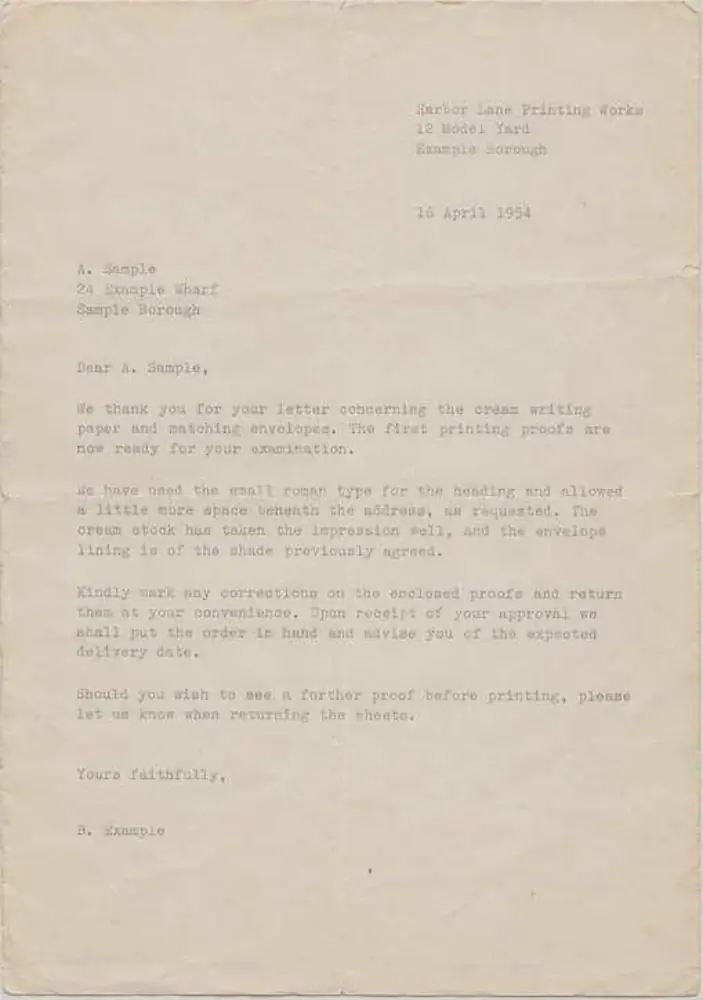
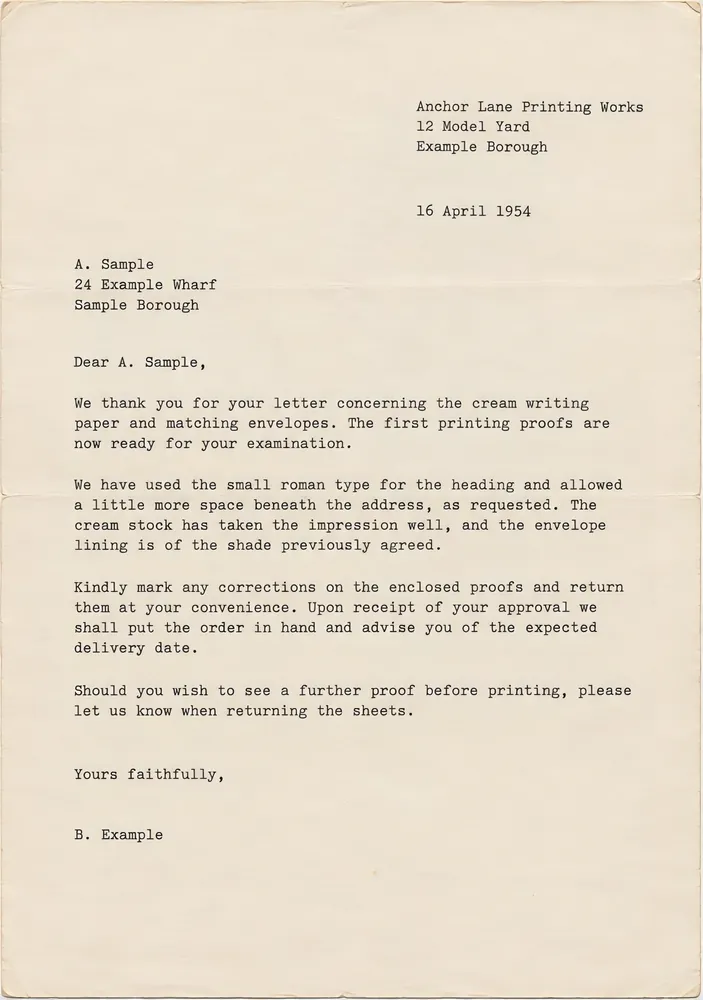
Faded typewritten letter on yellowed paper, before enhancement
Before
The same typewritten letter enhanced in Generative mode, the letters dark and clear
After · Generative

Faint and faded text

Brings back text that has almost disappeared on old or thermal paper.

Generative mode only

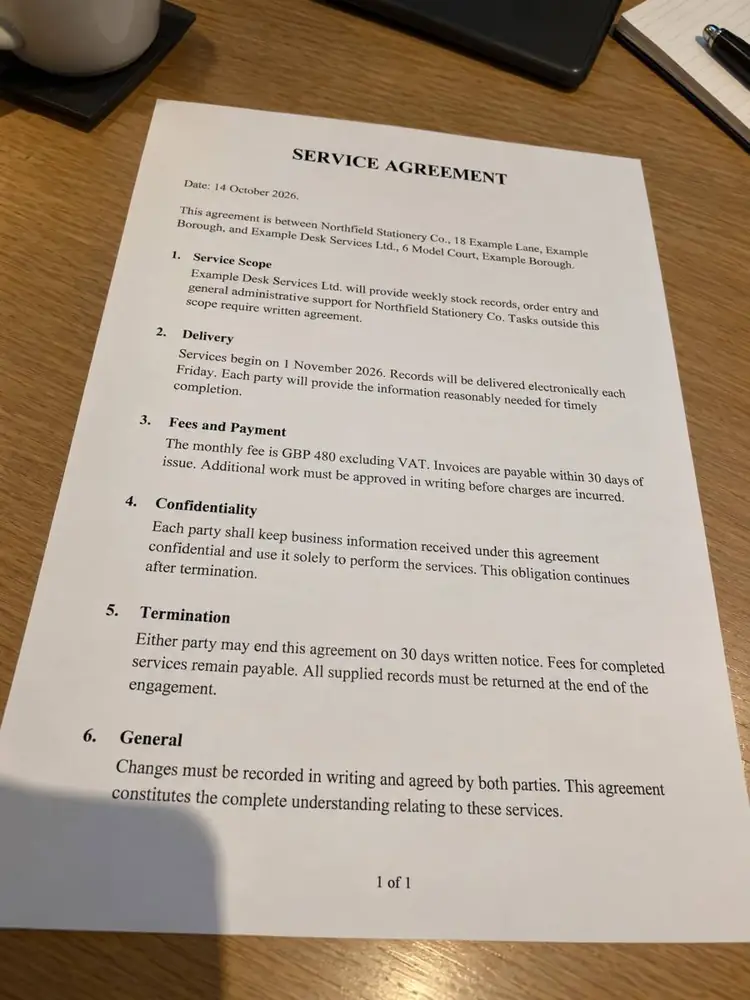
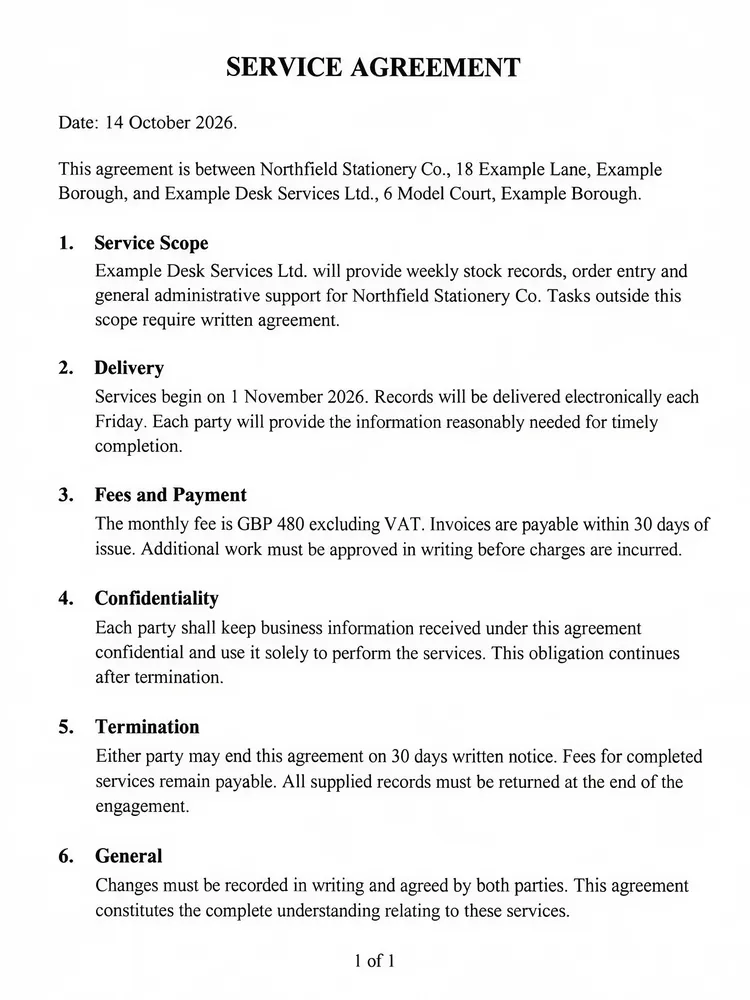
Contract page photographed at an angle in uneven light, before enhancement
Before
The same contract straightened and enhanced in Generative mode, with clean paper and sharp text
After · Generative

Tilted photos of documents

Straightens pages photographed at an angle.

Generative mode only

Faded typewritten letter on yellowed paper, before enhancement
Before
The same typewritten letter enhanced in Generative mode, the letters dark and clear
After · Generative

Uneven light and yellowed paper

Restores clean paper and natural ink colors.

Generative mode only

Blurry, faded shop receipt photographed with a phone, before AI document enhancement
Before
The same receipt enhanced with AI in Generative mode, its text sharp and readable
After · Generative

Noise and JPEG artifacts

Removes grain, blocks and compression noise around letters.

Works in both modes

How to Enhance Document Quality Online

  1. Upload your document

    A scan, a PDF, a phone photo or a screenshot.

  2. Choose a mode

    Normal for accurate 4× upscaling, Generative for documents that are hard to read.

  3. Check and download

    Zoom in to compare the text before and after, then download your document.

Upscale and Enhance PDF Documents

Many scanned documents arrive as PDFs – and a PDF made from a low-quality scan stays blurry no matter how far you zoom in. Upload the PDF directly: the AI Document Enhancer upscales the scanned page, sharpens the text and improves the overall document quality.

Faded typewritten letter on yellowed paper, before enhancementThe same typewritten letter enhanced in Generative mode, the letters dark and clearBeforeAfter · Generative
  • Upscale a scanned PDF – Turn a low-resolution PDF into a sharp, high-resolution document.

  • Improve PDF quality for printing and sharing – Make text and stamps crisp before you print, send or archive the file.

  • Enhance PDF text – Make small or faded text in a PDF clear and readable.

The enhancer works on the first page of the PDF. For a multi-page file, save each page you need as a separate PDF or image and upload them one by one. Download the result as an image, or as a PDF with an account.

Generative results can differ from the original in small details: check names, numbers and amounts against the original.

Clearer Text for Reading and OCR

OCR software reads text best when letters are large, sharp and high-contrast. Many OCR tools recommend 300 DPI or more. Upscaling a low-resolution scan in Normal mode gives the OCR engine cleaner letter shapes and a better character size, which can reduce recognition errors.

Upscaling can't recover text that was never captured – very small, cut-off or heavily blurred characters may still need Generative mode or a better scan.

Read our practical OCR preprocessing workflow.

Low-resolution screenshot of a table with blurry numbers, before upscalingThe same table screenshot upscaled 4× in Normal mode, the numbers crispBeforeAfter · Normal

How to Scan or Photograph Documents for the Best Results

Contract page photographed at an angle in uneven light, before enhancement
Before
The same contract straightened and enhanced in Generative mode, with clean paper and sharp text
After · Generative
  • Scan at 300 DPI or more – use 600 DPI for small print and old documents.

  • Photographing with a phone? Use even daylight, avoid shadows from your hand and phone, and turn off the flash to prevent glare.

  • Fill the frame – get close enough that the page fills most of the photo.

  • Keep the phone steady – rest your elbows on the table or use a stand to avoid motion blur.

  • Shot at an angle? Generative mode can help straighten the perspective.

Who Uses the Document Enhancer

Certificates and official documents

Improve the quality of scanned certificates, mark sheets and diplomas so they are sharp and readable.

Receipts and invoices

Make faded receipts and blurry invoices readable for expense reports and accounting.

Contracts and forms

Enhance scanned contracts and forms without changing their content in Normal mode.

Old letters and archives

Bring faded typewritten and handwritten documents back to a readable state.

Books, notes and study materials

Sharpen photos of book pages, lecture notes and handouts.

Screenshots and slides

Upscale low-resolution screenshots, tables and presentation slides.

OCR and document workflows

Prepare scans for text recognition, search and archiving.

Enhance Documents in Bulk with the API

API

Accounting firms, law offices, archives and document-processing platforms can enhance thousands of pages automatically. Send documents through the Deep-Image API and get sharper, OCR-ready images back in your workflow.

Normal: accurate 4× upscaling
curl -sf https://deep-image.ai/rest_api/process_result \
  -H "x-api-key: $DEEP_IMAGE_API_KEY" \
  -H "Content-Type: application/json" \
  -d '{
    "url": "https://example.com/scan.jpg",
    "width": "400%",
    "upscale_parameters": {"type": "text_x4"}
  }'
Generative: for documents that are hard to read
curl -sf https://deep-image.ai/rest_api/process_result \
  -H "x-api-key: $DEEP_IMAGE_API_KEY" \
  -H "Content-Type: application/json" \
  -d '{
    "url": "https://example.com/scan.jpg",
    "preset": "enhance_document"
  }'

Free vs PRO

Without an account

Free

Upload and enhance instantly

  • Normal mode
  • Up to 3 documents a day
  • Preview download, 500 px on the long edge
  • Generative mode
  • Full-resolution download

Free account

Free

Sign up, no credit card

  • Normal and Generative modes
  • Full-resolution download
  • Watermark on full-resolution results
Sign up free
No watermark

PRO

from $7.50

Subscription or pay-as-you-go credits

  • Normal and Generative modes
  • Full resolution, no watermark
  • Bulk enhancement through the API
See plans

Everyone can download a free Preview (500 px on the long edge). The full-resolution file needs an account.

Document Enhancer FAQ

Yes. Without an account you can enhance up to 3 documents a day in Normal mode, see the full-resolution result with a watermark and download a free preview (500 px on the long edge). A free account unlocks Generative mode and full-resolution downloads with a watermark. Paid plans remove the watermark – see plans.

See plans

Normal upscales the document without generative changes and is designed to preserve the original content. Generative can recover faint or blurry text, straighten tilted photos and restore paper and ink colors. It is generative, so each run may give a slightly different result and important data should be checked.

Upload the image and start with Normal mode. If the text is still unclear, try Generative mode, which is designed for faint and blurry text.

Normal mode doesn't use generative changes and is designed to preserve the original content, but for critical documents it's still worth checking important details. Generative mode can rebuild letters that are hard to see and each run may differ slightly, so check names, numbers and amounts against the original before using the document.

Often, yes. OCR works best with large, sharp letters, and upscaling a low-resolution scan gives the OCR engine cleaner text. For the most faithful input, use Normal mode.

Read the OCR preprocessing workflow

Yes. Generative mode can straighten the perspective of tilted document photos.

300 DPI is a good standard for most documents; use 600 DPI for small print and old documents.

See the scanning tips

Upload a scan or a photo of the document, choose Normal or Generative mode, then download the enhanced document. Low-quality documents become clear, high-resolution images in seconds.

Yes. Upload a PDF directly and the AI Document Enhancer will upscale its first page and make the text sharp and readable. For a multi-page file, upload each page you need as a separate file.

Upload the PDF, choose Normal mode for accurate 4× upscaling or Generative mode for faint and hard-to-read pages, and download the enhanced document. The first page of the PDF is enhanced.

Yes. Scanned or photographed certificates, diplomas and mark sheets can be enhanced and upscaled for printing or uploading to online forms.

Yes. The Document Enhancer works well on receipts, invoices and other small-print documents, including faded thermal receipts in Generative mode.

Yes. Normal mode upscales documents 4×, so a small scan or phone photo becomes large and sharp enough for clear prints.

Yes, through the Deep-Image API.

Enhance documents in bulk with the API

Documents uploaded without an account are deleted, with all their files, after 24 hours. For registered accounts, files are kept according to your plan and our privacy policy. Deep-Image is an EU-based company and processes data under GDPR.

Privacy policy

More AI Image Tools

View all tools

Enhance your first document free

3 free documents a day, no sign-up. Generative mode and full resolution with a free account, or go PRO from $7.50 with no watermark.